AeroView
Phased Array UT Data Acquisition and Analysis Software for Aerospace
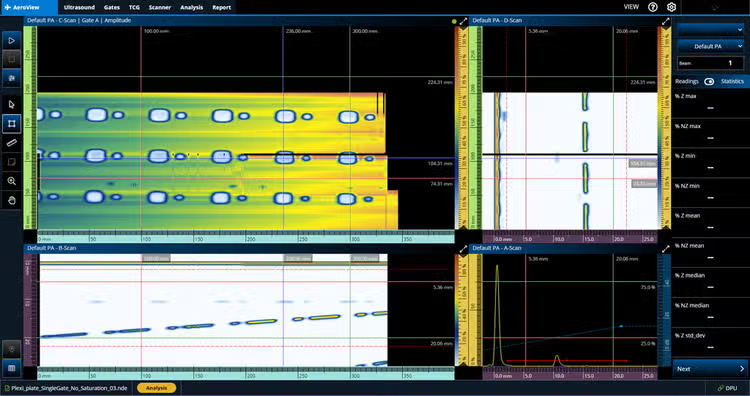
AeroView™ software enables you to acquire and analyze phased array and ultrasonic testing (PAUT) data of inspections performed at 0 degrees with an overlap. This software is specially designed to facilitate the analysis of aviation and aerospace inspection data, for both manufacturing and maintenance applications. It provides you with optimized layout and readings management and advanced analysis tools to ease interpretation of the acquired data and help ensure compliance with the specifications.
-
Software Downloads:
AeroView
Ottimizza il tuo flusso di lavoro con AeroView Inspection
Con una licenza software di AeroView Inspection è possibile acquisire direttamente i dati PAUT su un PC tramite un'unità OmniScan X4, eliminando la necessità di trasferire i dati. Per aumentare la produttività, l'AeroView Inspection fornisce la flessibilità di analizzare una componente ispezionata mentre se ne scansiona un'altra, visto che in un computer possono essere aperte due sessioni.
Il dispositivo OmniScan X4 funziona come una scatola nera (mediante l'app OmniScan Black Box) e l'ispezione viene eseguita nel computer con AeroView Inspection. È possibile creare la tua configurazione mediante il software ScanPlan, adattando i tuoi layout e palette. È sufficiente tarare il tuo sistema su un blocco di taratura e sei pronto per iniziare. Tutti tuoi dati sono memorizzati nel tuo computer.
AeroView Inspection è compatibile con tutti i Omniscan X4 modelli e Quickscan iX PA+ unità di acquisizione.
Ecosistema software AeroView
Il software AeroView Analysis è compatibile con il formato di dati .nde. Puoi usarlo per analizzare i dati PAUT acquisiti a zero gradi, con sovrapposizione, mediante i seguenti strumenti e software di ispezione:
- Serie OmniScan X3 (tutti i modelli)
- Rilevatori di difetti OmniScan X4 (tutti i modelli)
- Software AeroView Inspection quando si utilizza uno strumento OmniScan X4
Strumenti software ottimizzati per il settore aeronautico e aerospaziale
Personalizza il layout, le misure e la palette di colori in rapporto alle tue necessità.
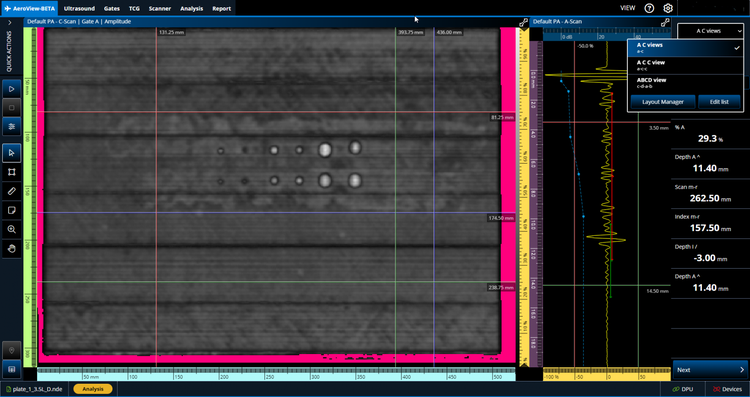
Gestione Layout
Permette di cambiare semplicemente le opzioni layout nel menu.
Gestione Layout
Permette di cambiare semplicemente le opzioni layout nel menu.
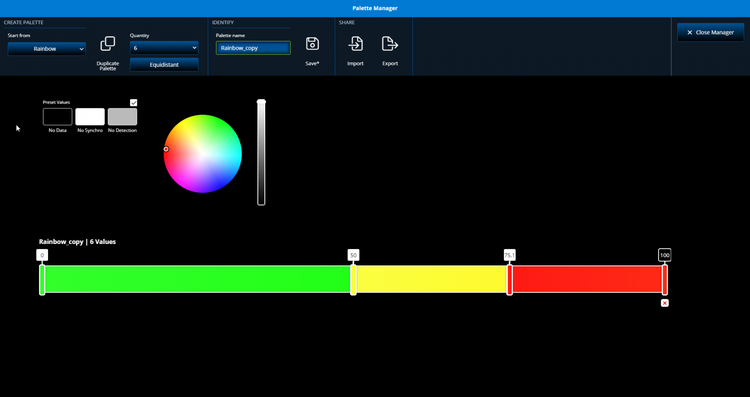
Gestione Palette
Personalizza la palette di colori o importa una palette e la salva.
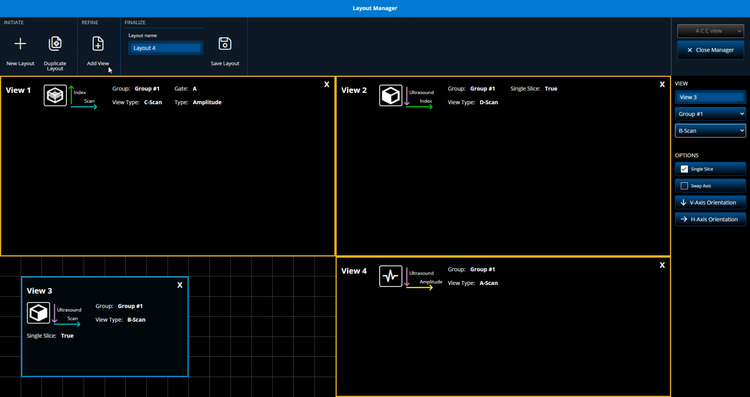
Modifica e salva un layout personalizzato per le tue necessità o per essere conforme alle specifiche del produttore.
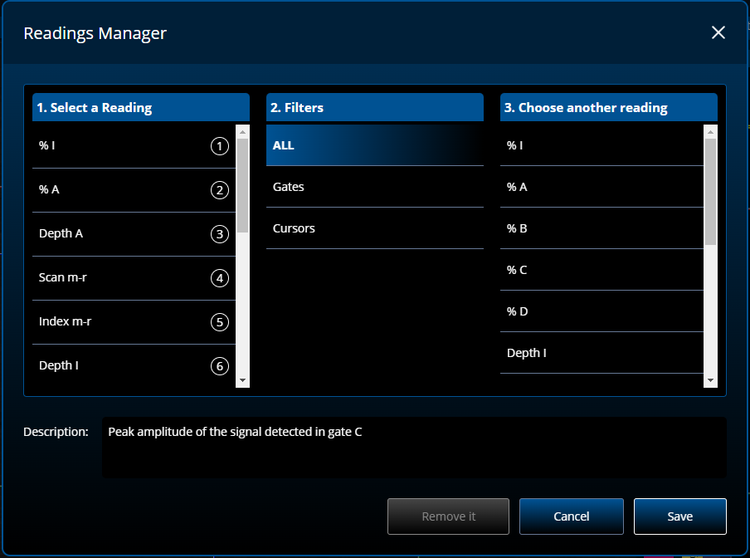
Analisi approfondita delle indicazioni per dei risultati affidabili
Utilizza gli strumenti di analisi del software per migliorare le capacità di definizione delle indicazioni.
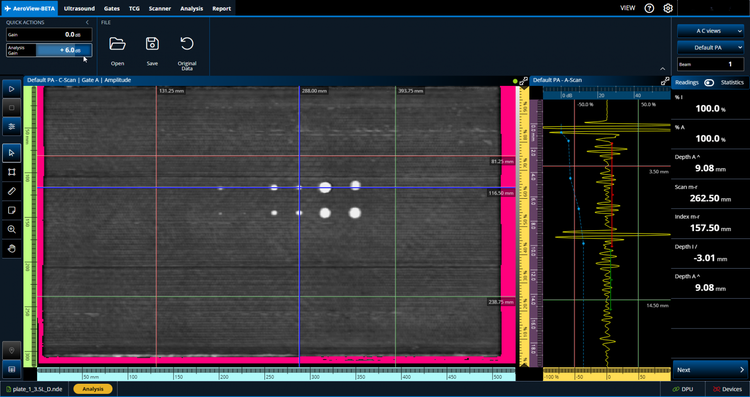
Aggiungi il guadagno durante l'analisi
La configurazione del guadagno di Analysis permette di aumentare o diminuire il guadagno per regolare in modo preciso i dati durante l'analisi.
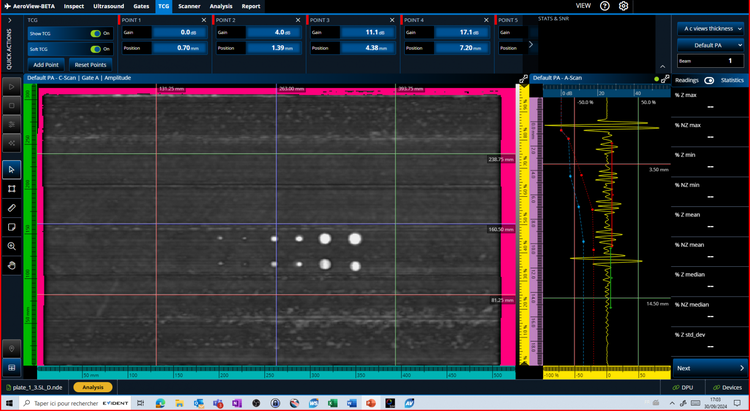
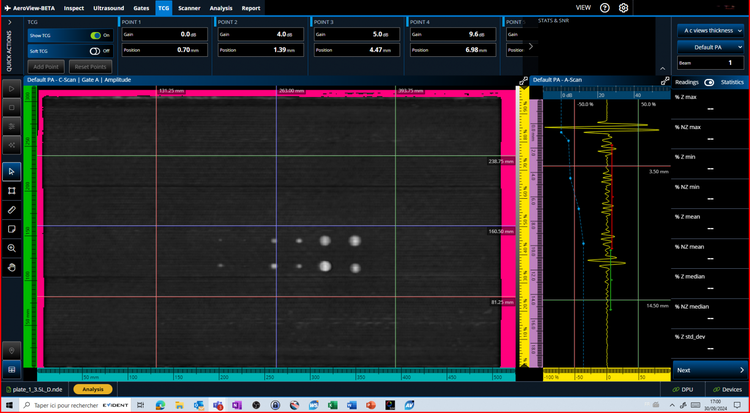
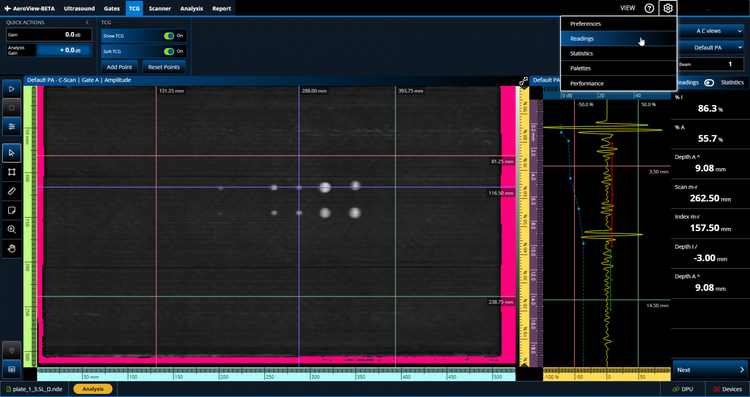
Attivazione/Disattivazione TCG software
Il TCG software permette di aggiungere e sottrarre dei punti TCG addizionali durante l'analisi dei dati. È possibile facilmente attivare e disattivare questo guadagno software.
È possibile vedere illustrato il TCG che è stato applicato durante l'acquisizione dei dati (i punti e la linea tratteggiata blu).
Analizza i tuoi dati in dettaglio
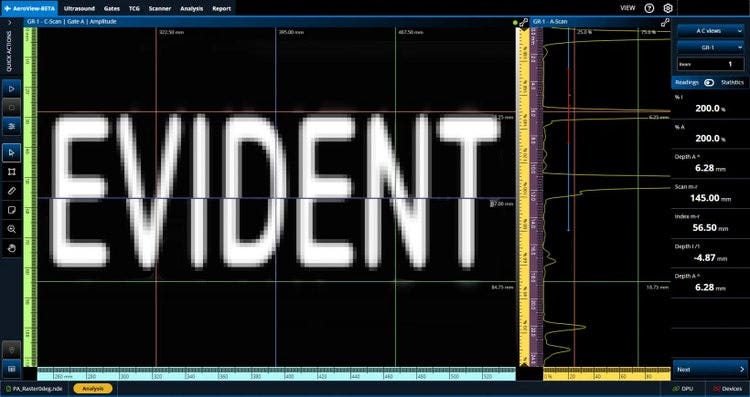
È possibile allargare la vista dei dati a schermo intero oppure zoomare il C-scan con un rapporto 1:1, in modo da vedere ogni aspetto di ogni indicazione e migliorare la sua definizione.
Modalità a schermo intero
Vista con rapporto 1:1
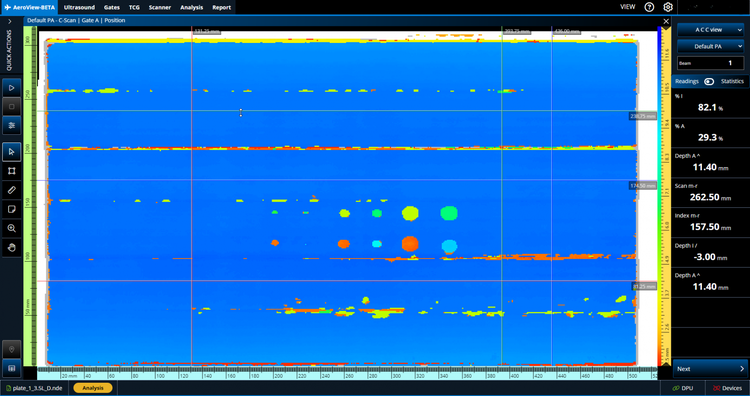
Visualizzazione della modalità normale.
C-scan visualizzato utilizzando il rapporto standard.
Modalità a scherma intero attivato per il C-scan.
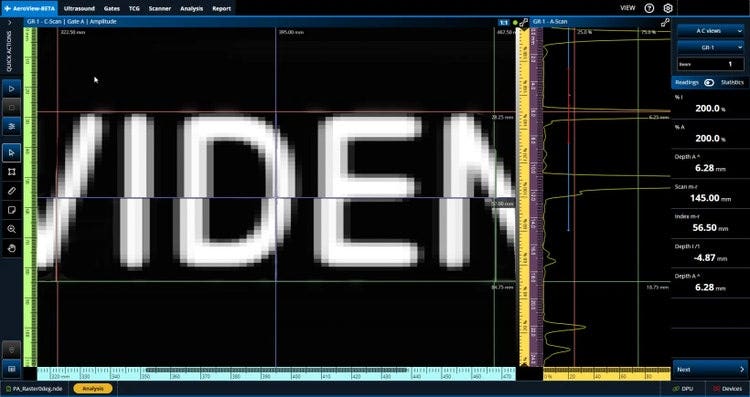
Visualizzazione del rapporto 1:1 attivato.
Inserimento di tutte le indicazioni in una tabella per il report
È possibile creare una tabella delle indicazioni che viene personalizzata in base ai parametri necessari come il tipo di difetto, le misure, la soglia e il risultato. I dati della tabella delle indicazioni sono memorizzati insieme all'immagine acquisita di ogni indicazione per il report.
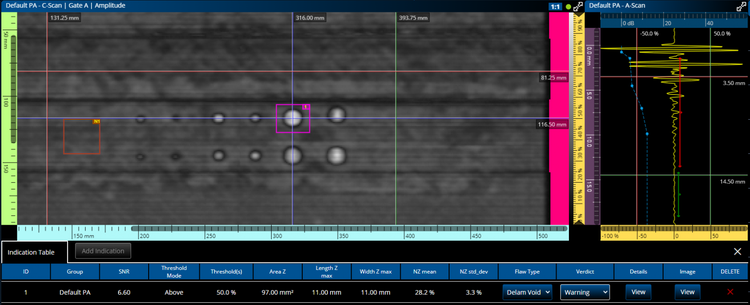
Calcolo del rapporto segnale-rumore (SNR - signal-to-noise ratio)
È possibile aumentare la produttività delle tue ispezioni PAUT a zero grado in conformità ai requisiti di calcolo del rapporto segnale-rumore stabiliti dai produttori di aerei.
Gli strumenti di calcolo dell'SNR includono:
Zona del rumore (NZ - noise zone)
Calcolo dell'SNR (Zona del difetto)
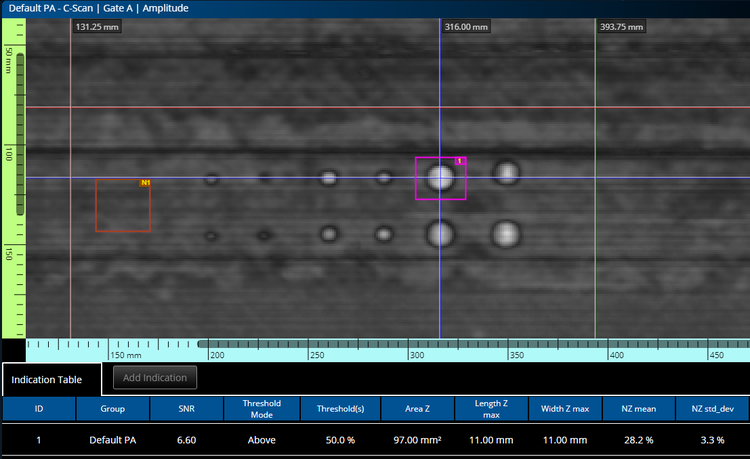
Cliccando il tasto destro del mouse si può creare una zona del rumore (riquadro marrone) nella quale viene calcolata la deviazione standard dei pixel in funzione dell'ampiezza.
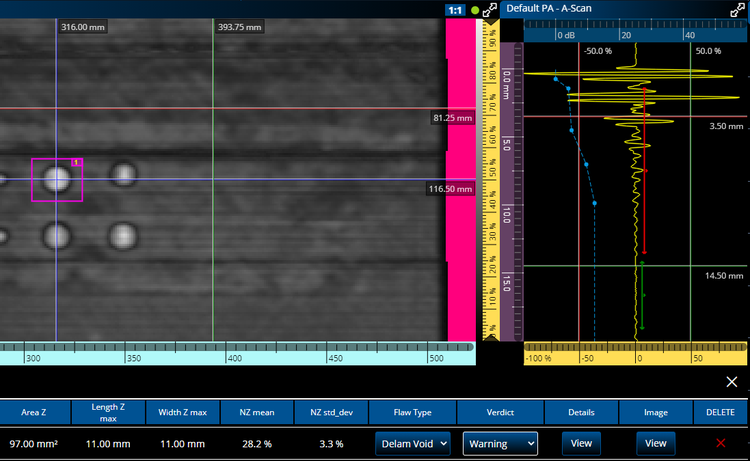
Cliccando il tasto sinistro si può tracciare il riquadro rosa attorno a un difetto per calcolare automaticamente il numero di pixel al di sotto della soglia definita.
Contrasto automatico
Dopo che la soglia è stata correttamente definita per un difetto in un campione di riferimento, è possibile attivare il contrasto automatico per identificare facilmente le indicazioni che superano il limite.
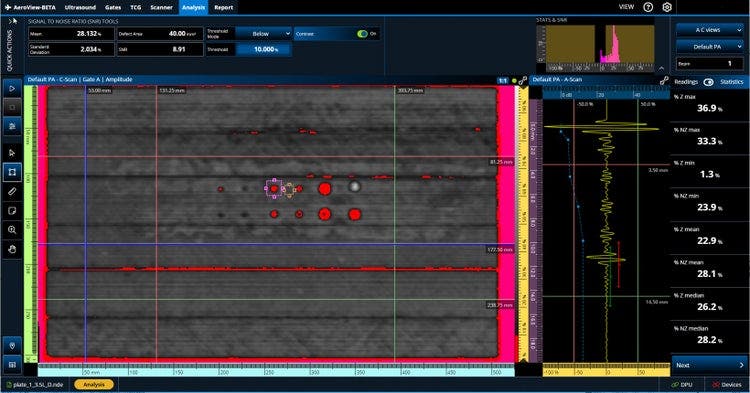
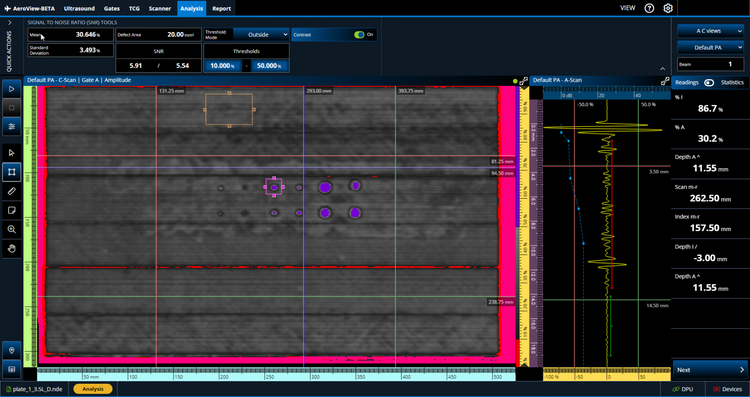
La palette personalizzata qui illustrata visualizza tutti i pixel con un ampiezza inferiore al 20% in rosso (a sinistra) e tutti i pixel con un'ampiezza superiore al 60% in viola (a destra).
Requisiti
I requisiti minimi di sistema per il software AeroView sono i seguenti:
- CPU: Intel Core i7 o Xeon E3
- Memoria RAM: 32 GB (DDR3 o superiore)
- Unità archiviazione dati: SSD da 1 TB
- Scheda di rete: Scheda Gigabit Ethernet e cavo Cat 5
- NVIDIA GPU con capacità di calcolo minima di 6.1
- 1 600 × 1 200 su display 4:3 (1920 × 1080 su display 16:9) o risoluzione del monitor o dell'adattatore del display superiore
- Tastiera e dispositivo di puntamento
- Sistema operativo Microsoft Windows 10 (aggiornato al 2022)